Launching SSH Sessions from a Homepage Dashboard on macOS
Dashboard tools such as Homepage (https://gethomepage.dev) are excellent for collecting links to services and infrastructure in one place. One thing they normally cannot do, however, is launch local applications directly. Browsers intentionally prevent arbitrary programs from being started for security reasons.
macOS provides a clean solution through custom URL schemes. By registering a small local application as the handler for a protocol, the browser can safely hand the request to the operating system, which then launches a local command.
With this approach a dashboard tile such as:
sshconfig://example-server
can immediately open a terminal and connect to the host using SSH.
The setup is simple and consists of three components: a small shell
script that launches SSH, a minimal AppleScript application that
receives the custom URL, and a macOS URL scheme registration so the
system knows which application handles sshconfig://.
Once configured, clicking a tile in the browser opens a terminal and connects to the selected server.
Step 1 – Create the SSH launcher script
Create a small helper script that launches the terminal and executes SSH. A convenient place for personal utilities is:
~/.local/bin
Create the file:
~/.local/bin/sshconfig-open
with the following contents:
#!/bin/zsh
set -euo pipefail

host="${1:?missing host}"
[[ "$host" =~ ^[A-Za-z0-9._-]+$ ]] || {
  print -u2 "Invalid host alias: $host"
  exit 1
}

ghostty_bin="/Applications/Ghostty.app/Contents/MacOS/ghostty"

exec "$ghostty_bin" -e ssh "$host"
Make it executable:
chmod +x ~/.local/bin/sshconfig-open
You can test it directly:
sshconfig-open example-server
If everything is configured correctly, a new terminal window will open
and connect to the host. Because this uses the normal ssh command, any
configuration in ~/.ssh/config is automatically respected.
Step 2 – Create the protocol handler application
Next create a small macOS application that receives the custom URL and forwards the hostname to the launcher script.
Open Script Editor and create a new script:
on open location this_URL
    set hostAlias to text 13 thru -1 of this_URL
    do shell script "/usr/bin/env sshconfig-open " & quoted form of hostAlias & " >/dev/null 2>&1 &"
end open location
Save the script as an Application, for example:
SSHConfigOpener.app
This application acts as the bridge between the browser and the shell script. The background execution ensures the helper app exits immediately instead of remaining visible in the Dock.
Step 3 – Register the custom URL scheme
macOS needs to know that this application handles the sshconfig://
protocol.
Inside the application bundle you will find:
SSHConfigOpener.app/Contents/Info.plist
Add a Launch Services entry declaring the scheme:
CFBundleURLTypes = (
    {
        CFBundleURLName = "local.sshconfig";
        CFBundleURLSchemes = (
            sshconfig
        );
    }
);
After modifying the bundle metadata, refresh Launch Services so macOS becomes aware of the handler:
/System/Library/Frameworks/CoreServices.framework/Frameworks/LaunchServices.framework/Support/lsregister \
  -f /path/to/SSHConfigOpener.app
You can now test the protocol directly:
open "sshconfig://example-server"
If everything is configured correctly, Ghostty will open and connect to the specified host.
Using the protocol from Homepage
Once the protocol handler is registered, dashboard tools such as Homepage can link directly to the scheme:
sshconfig://example-server
When clicked, the browser asks macOS to open the external protocol. The operating system launches the handler application, which forwards the hostname to the SSH launcher script and opens the terminal.
Most browsers will show a confirmation dialog the first time a site launches an external protocol. After allowing it once (and choosing to remember the decision), subsequent clicks open the SSH session immediately.
Result
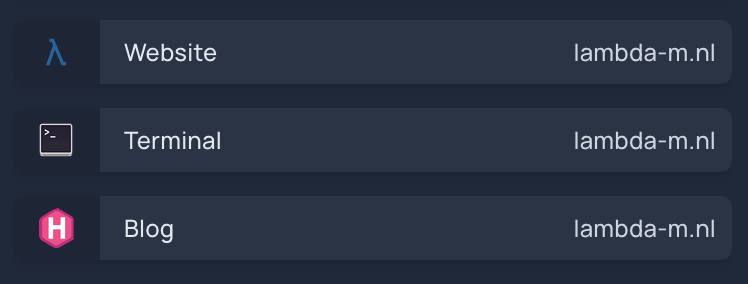
    - Terminal:
        - icon: terminal
          href: sshconfig://lambda-m.nl